Portal Guide
Using the Arachne self-service portal
The Arachne portal is a self-service web UI that lets teams manage their agents, knowledge bases, API keys, and settings without touching infrastructure.
Overview
The portal is organized around a few core concepts:
- Agents define how requests are handled — model, provider, system prompt, and behavior settings.
- Knowledge Bases store document embeddings for retrieval-augmented generation (RAG).
- API Keys authenticate requests and bind them to a specific agent.
- Members control who has access to your organization’s tenant.
Managing Agents
Creating an Agent
Navigate to Agents and click + New Agent.
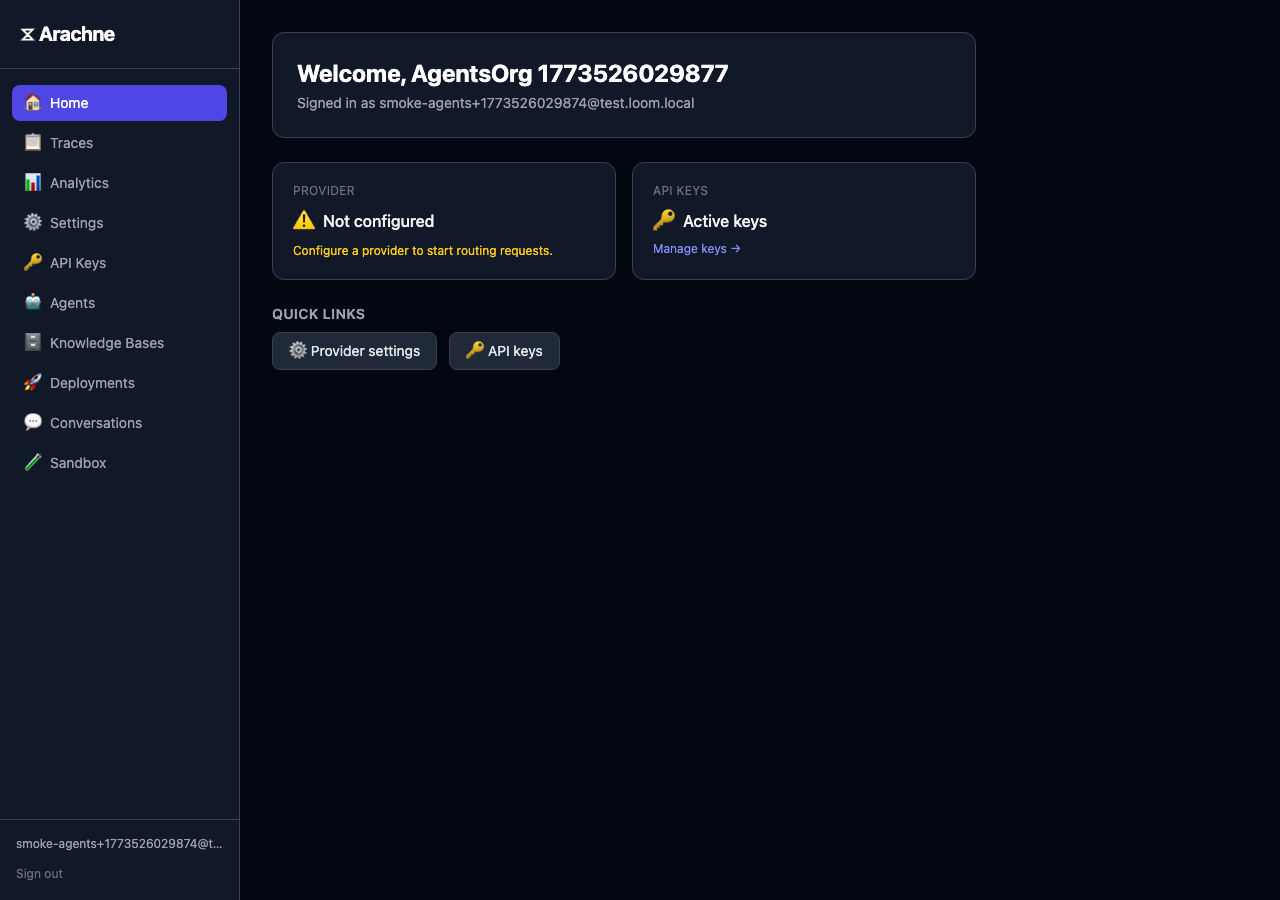
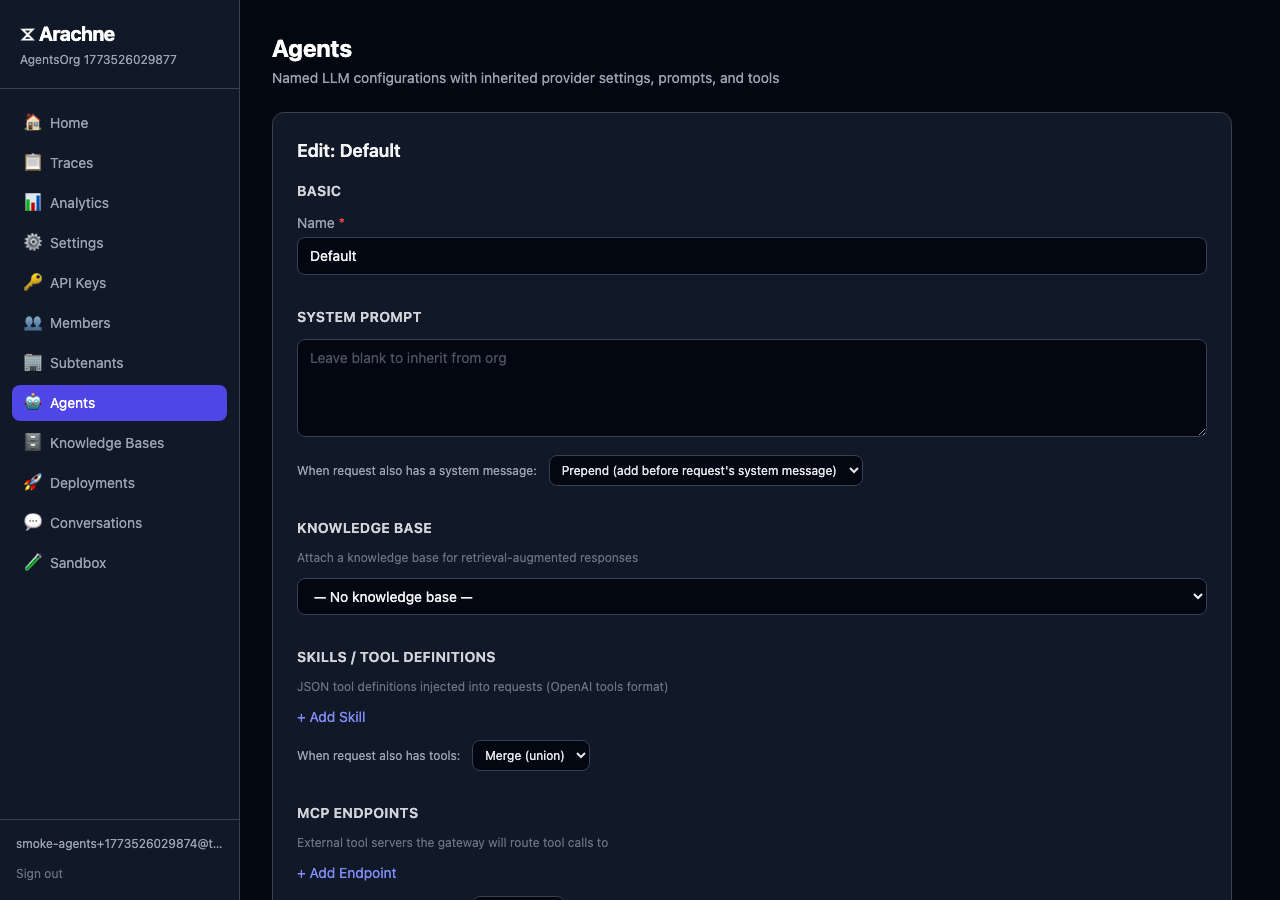
Configure the agent:
- Name — A unique, human-readable identifier (e.g.,
docs-assistant). - Provider — Select a gateway provider or use the tenant default.
- System Prompt — Base instructions for the agent. Supports merge policies for how agent and request prompts combine.
- Skills — Tool definitions injected into requests (OpenAI tools format).
- Knowledge Base — Attach a KB for RAG-powered responses.
Conversation Memory
In the agent editor, toggle Enable conversations to let the agent retain context across multiple requests. When enabled, two additional fields appear:
- Memory threshold (tokens) — When conversation history exceeds this estimate, it’s automatically summarized into a snapshot.
- Summary model — The model used to generate conversation summaries (defaults to the request model).
Conversations are scoped by conversation_id, passed in the request body. Messages are stored, encrypted at rest, and replayed as context on subsequent requests.
Testing in the Sandbox
Click Test on any agent to open the sandbox. The sandbox routes through the full gateway pipeline — RAG retrieval, conversation memory, merge policies, and tracing all work exactly as they would in production.
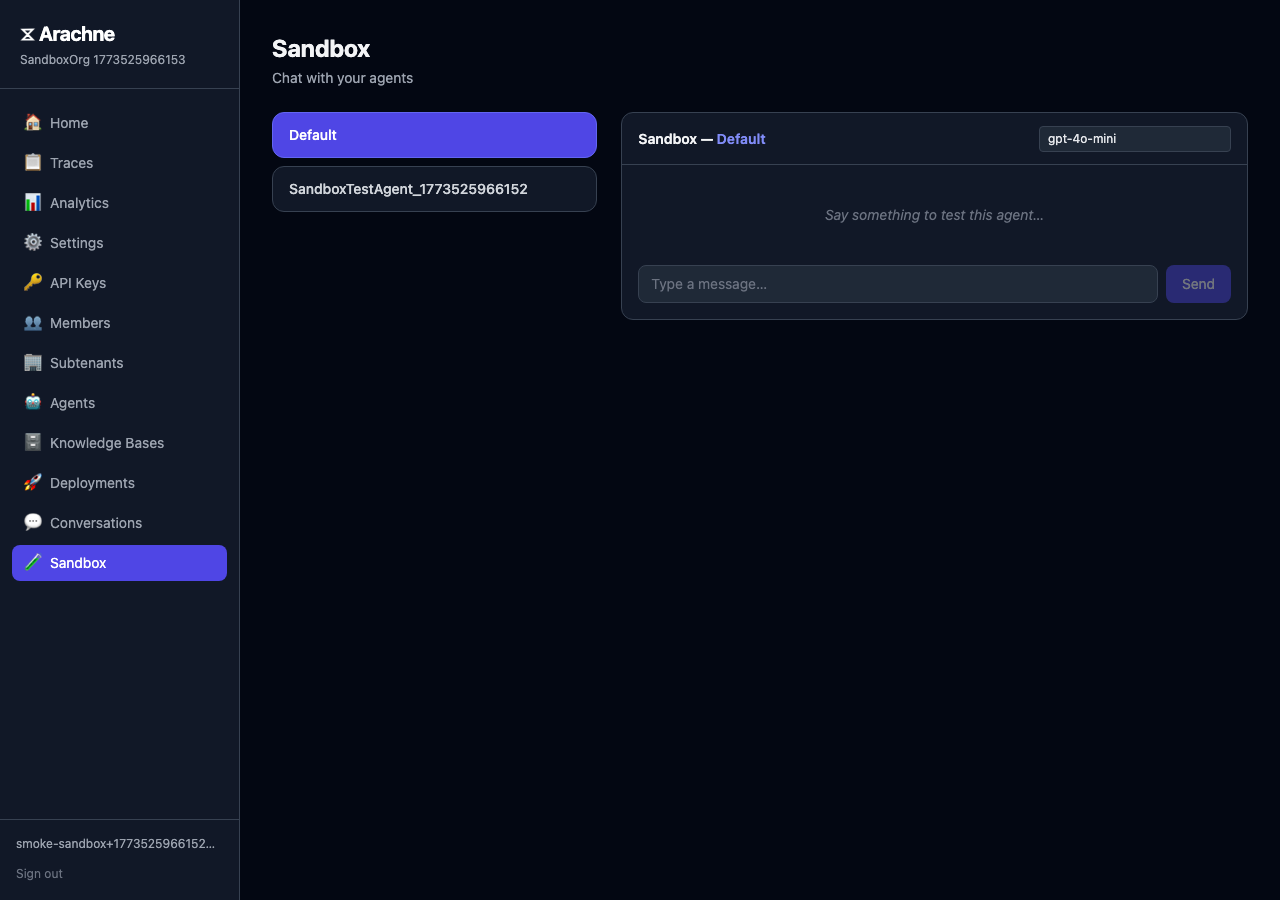
The sandbox shows:
- Markdown-rendered responses
- RAG source citations with similarity scores
- Token usage and latency stats
- Knowledge base info (chunk count, source files) when a KB is attached
Knowledge Bases
Creating a Knowledge Base
Navigate to Knowledge Bases and click + New Knowledge Base.

Upload your source documents — supported formats: .txt, .md, .json, .csv, .pdf. Arachne will:
- Extract text (including PDF text extraction).
- Chunk the documents into segments (650 tokens with 120-token overlap).
- Generate embeddings using your configured embedder.
- Store the vectors in PostgreSQL with pgvector.

The creation panel shows the configured embedding model. If no embedder is configured, a warning is displayed and creation is disabled.
API Keys
Generating Keys
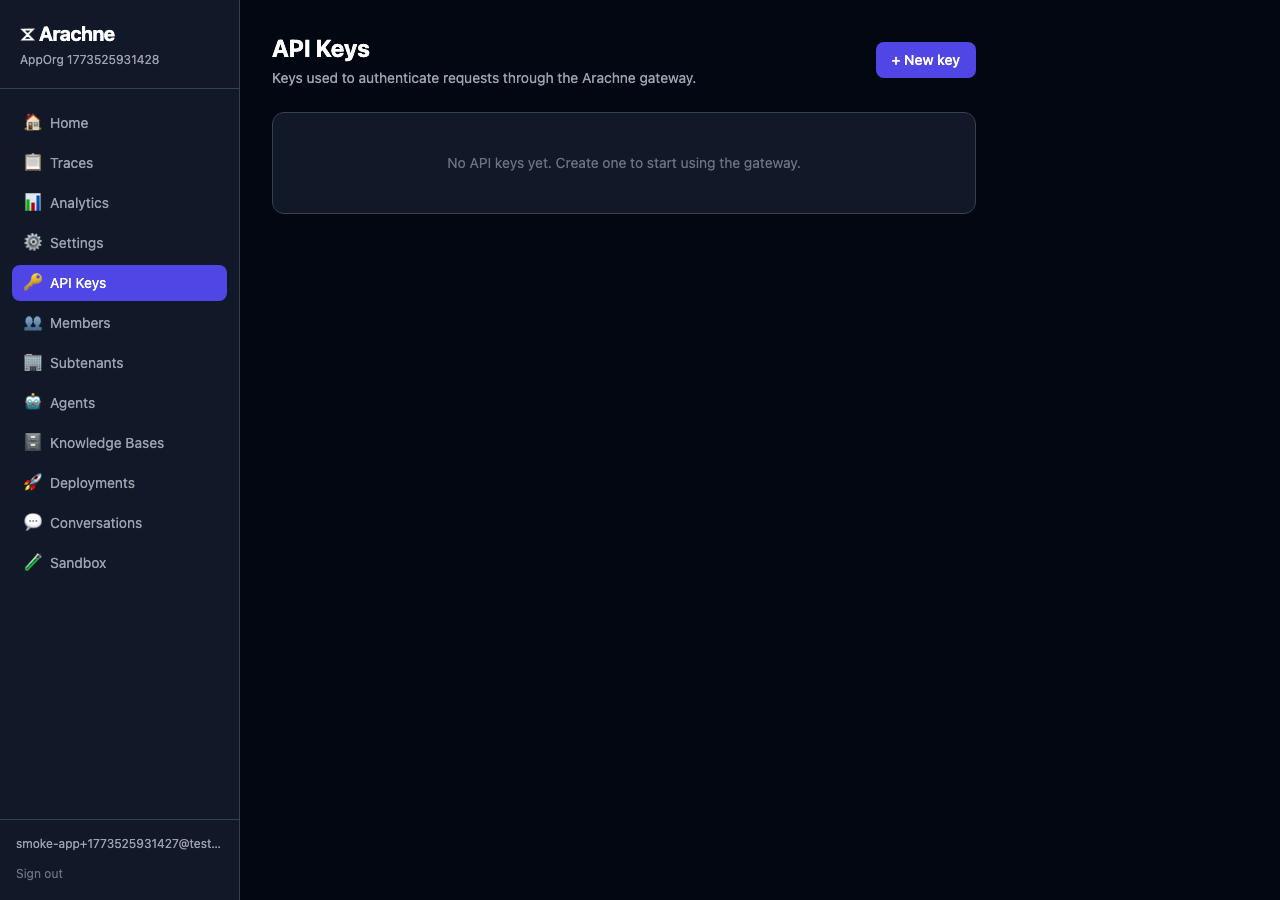
Each API key is bound to one agent. Navigate to API Keys and click Generate Key, then select the target agent. The key is displayed once — copy and store it securely.
Revoking Keys
Revoke a key from the API Keys list. Revocation is immediate and cached keys are invalidated within seconds.
Members and Invites
Inviting Members
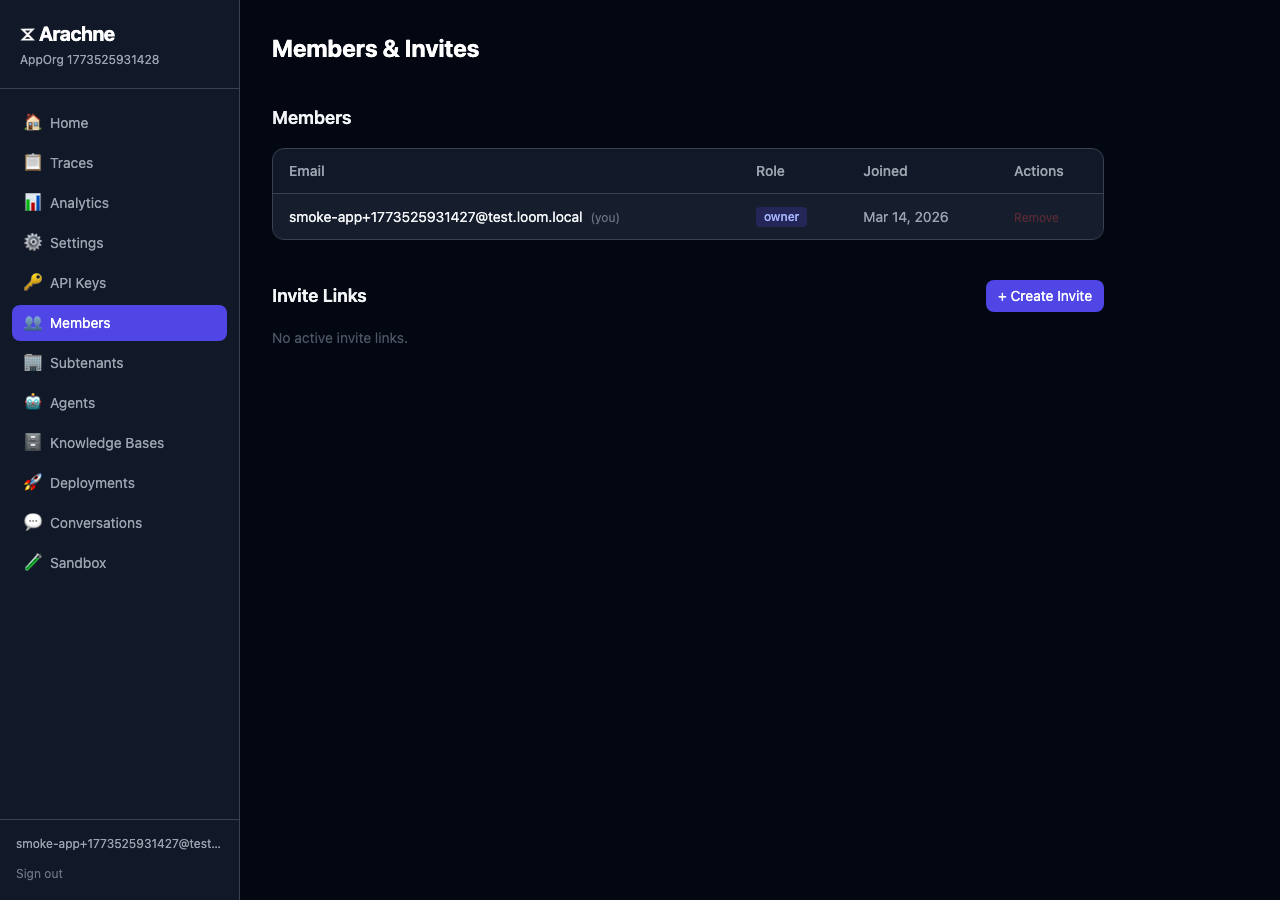
Go to Members and create an invite link. Share the link with teammates to join your organization.
Roles
- Owner — Full administrative access, including member management and settings.
- Member — Can create and manage agents, knowledge bases, and API keys.
Switching Tenants
Users who belong to multiple organizations can switch between tenants from the account menu. A new session token is issued for each tenant context.
Provider Settings
Under Settings, configure the LLM provider your agents use. Each provider configuration includes:

- Type —
openai,azure, orollama. - Credentials — API keys and endpoint URLs (encrypted at rest).
- Available Models — Which models are exposed to agents.
Gateway providers configured by your administrator are also available. Select them per-agent in the agent editor.
Analytics
The portal surfaces real-time analytics for your tenant:
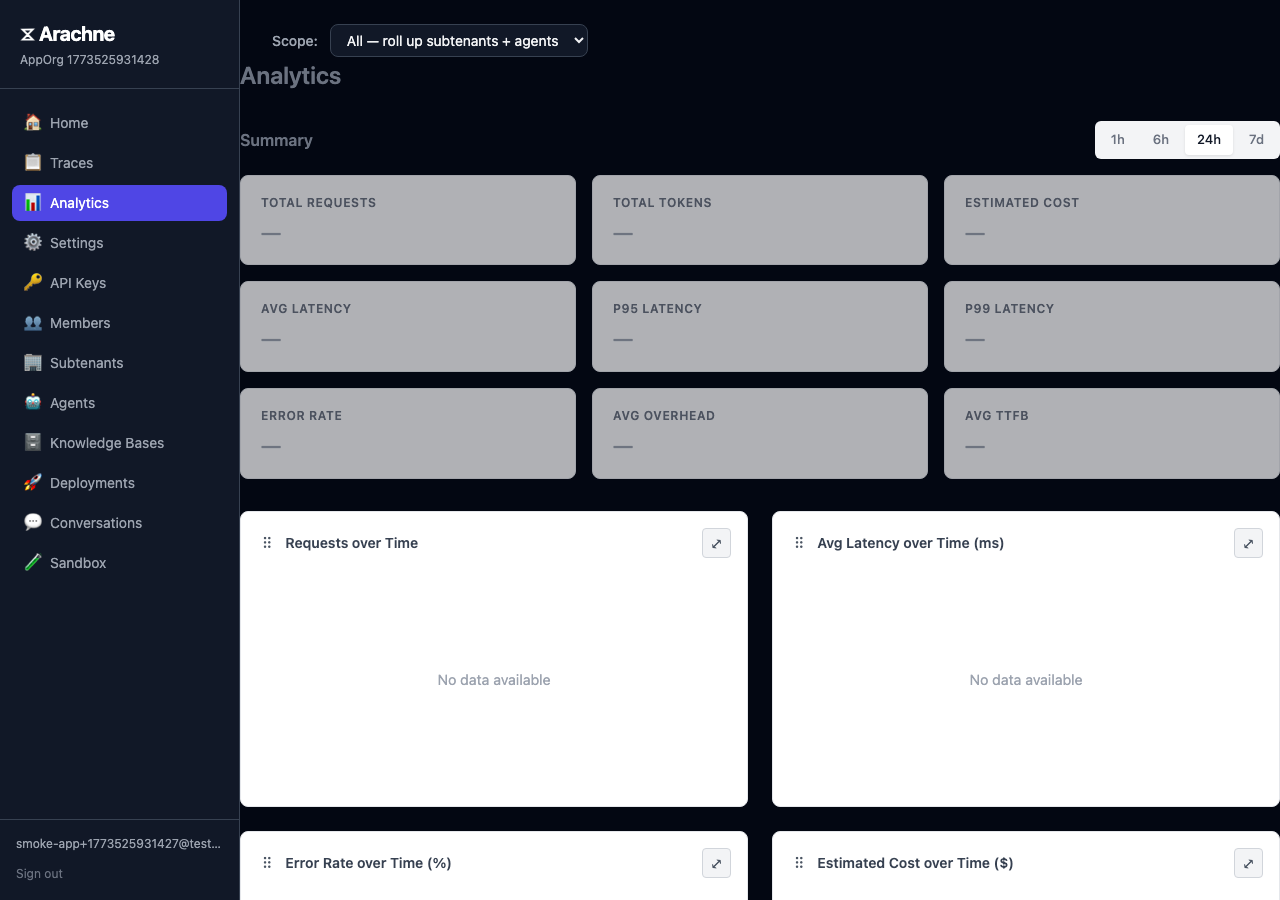
- Request volume — Total requests over time.
- Model breakdown — Usage distribution across models.
- Latency — P50, P95, and P99 response times.
- Token usage — Input and output token counts.
Use analytics to monitor agent performance, optimize model selection, and track costs.